One sheet as filter to target other sheets in Tableau dashboard
- Do either of the following:
- On a worksheet, select Worksheet > Actions, and then continue to step 2.
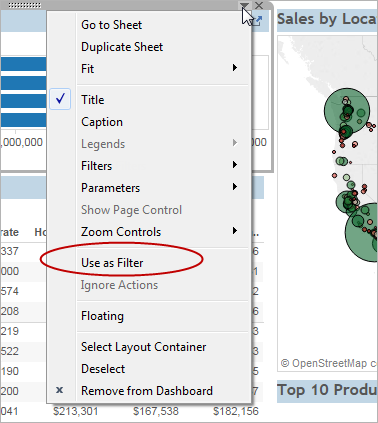
- On a dashboard, select Dashboard > Actions. Or, from the drop-down menu of a sheet, select Use as Filter.
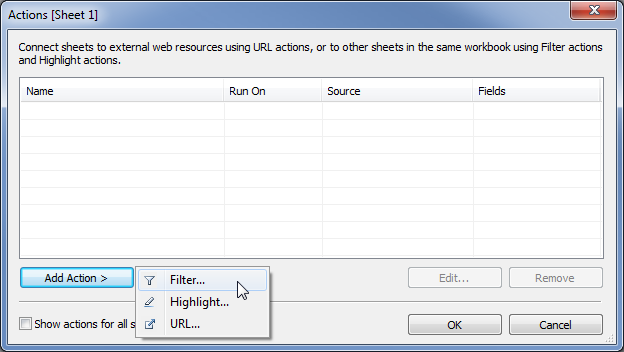
- In the Actions dialog box, click Add Action, and then select Filter. Or select an existing action, and choose Edit.
- Specify a name for the action.
 Tip: If you plan to launch an action from a menu, use a descriptive name so users will understand the action's purpose. You can use variables in the name that are drawn from the values of the selected field.
 - Select a source sheet or data source. If you select a data source or dashboard, you can select related sheets you want to launch the action from.
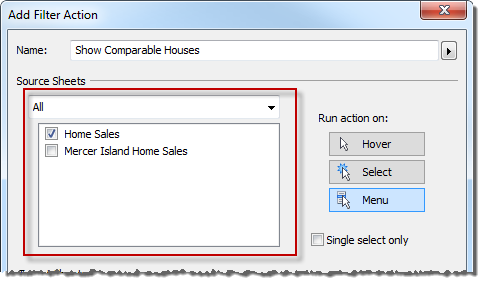
- Specify how the action runs:
- Hover - Rest the pointer over a mark in the view to run the action. This option works well for highlight and filter actions within a dashboard.
- Select - Click a mark in the view to run the action. Selecting multiple marks will also run this action. This option works well for all types of actions.If you select the Run on single select only option, the action will run only when a single mark is selected. The user must click the mark again to deselect it.
- Menu - Right-click (Windows) or Control-click (macOS) a selected mark in the view, and then select an option on the context menu. This option works well for filter and URL actions.

- Select a target sheet. When you select a dashboard, you can select one or more sheets within it.
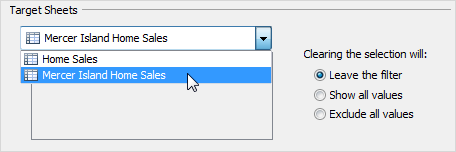
- Specify what happens when the selection is cleared in the view:
- Leave the filter - Continues to show filtered results on the target sheets.
- Show all values - Changes the filter to include all values.
- Exclude all values - Changes the filter to exclude all values. This option is useful when you're building dashboards that only show some sheets if a value in another sheet is selected.
- Specify the data that you want to show on the target sheets. You can filter on All Fields or Selected Fields.
- If you chose Selected Fields, click Add Filter.
 In the Add Filter dialog box, select source and target data sources and fields. When you run the action from a specific mark on the source sheet, a filter is added to the target sheet that only includes values for the target field that match the source field.In the comparable houses example, if the Source Field and Target Field are both set to Beds, when you click a sheet link for a house with three bedrooms, the target worksheet shows only three-bedroom houses.
Comments
Post a Comment