
Replacing the Data Source for a Single Sheet in a Tableau Workbook

Replacing the Data Source for a Single Sheet in a Workbook

  1. Open a workbook that connects to the original data source.
  2. Select Data > New Data Source and then connect to the new data source.
  3. On the Data Source page, drag a table to the canvas to set up the data source (if this is not automatically done for you).
  4. Go to the sheet tab and select Data > Replace Data Source.
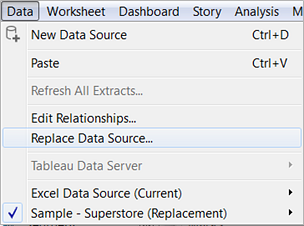
    Note: You must have at least one field in the view to make the Replace Data Source option available.
  5. In the Replace Data Source dialog box, select the Current data source and the Replacement data source.
  6. When finished, click OK.
All worksheets, dashboards, and stories that used the original data source are updated to use the new data source. You can click Undo on the toolbar to revert the change and return to the original data source.

How to replace the data source for a single sheet in a workbook. When replacing a data source in a duplicated worksheet, the data source is replaced in the duplicated worksheet as well as the original worksheet.

Use the following workaround:

  1. Follow the steps in Copy and Paste Sheets to copy the sheet into a new blank workbook.
  2. Verify that the new workbook contains open data connections to the original data source of the copied worksheet, as well as the new data source.
  3. In the new workbook, replace the original data source for the copied worksheet with the new desired data source. For more information, see Replacing Data Sources.
  4. Copy the worksheet back into the original workbook. The original workbook should also have the new desired data source connection to ensure a smooth copy. 

Comments

Popular Posts

Add Space between bars in Tableau chart

Add Space between bars in Tableau chart Scenario: Tableau defaults to no spacing between the panes in a view. How do I get some spacing between groups of bars in my charts? It can be achieved through the steps below: Add subtotals (Analysis->Totals->Add All Subtotals) Right click on the measure pill on the Rows shelf and change the default SUM() aggregations to MIN() To edit the color legend – double click on the Total color, this takes you to a color dialog, select the WHITE color, click OK Right click on the word Total in the X axis and select Format In the Format window, click the Header tab and blank out the Total label field The added space looks like below:

Adding “Apply” Button to A Filter Menu In Tableau

Adding An “Apply” Changes Button To A Filter Menu In Tableau Sometimes when a user is changing the options they want on a filter in Tableau, the chart updates as they change each option. This might not be the best user experience if they are changing many options and don’t want the dashboard to redraw the view until they have completed their selection. It is very simple to fix this – Tableau includes an “apply” changes option, which when enabled, means the dashboard won’t redraw to reflect the new filter choices until the user presses the “apply” button. Simply click the drop down arrow on the filter menu > go to “customize”, then click “show apply button”.  

Error "Cannot mix aggregate and non-aggregate arguments with this function"

Error "Cannot mix aggregate and non-aggregate arguments with this function" When Creating a Calculated Field When creating a calculation, the following error might occur:  "Cannot mix aggregate and non-aggregate arguments with this function." The issue can be resolved through one of the below options: Modify the calculation so that all fields are either aggregate or non-aggregate. Each option can result in different values (please reference the additional information section for specific examples). Option 1 (Aggregate Then Divide) Wrap all fields in an aggregation. Sample: [Profit] / SUM ([Sales]) -> SUM ([Profit]) / SUM ([Sales]) Option 2 ( Divide Then Aggregate) Remove aggregations from all of the fields. Sample: [Profit] / SUM ([Sales]) ->[Profit] / [Sales]   Option 3 ( Condition Then Aggregate) Move the aggregation so all fields are aggregated. For example, the calculation: IF [Row ID] = 1 THEN SUM( [Sales] ) END  could...

Tableau Bar Chart Rounded corners

Tableau Bar Chart Rounded corners Follow the steps in the video below to create rounded corners for the bar chart:

Removing "Abc" Placeholder Text in Tableau Measures column

Removing "Abc" Placeholder Text in Tableau Measures column Quick and easy fix for this issue could be: Use Polygon mark type On the Marks card in the dropdown menu, select Polygon Resize the last column to make it smaller Navigate to Format > Borders In the left-hand Format Border Pane, for Column Divider, For Pane, select None from the dropdown menu Navigate to Format > Shading In the left-hand Format Border Shading, for Row Banding, move the slider to the desired level of row banding

Using Special Characters in Tableau URL Parameters

Using Special Characters in Tableau URL Parameters When we try to use special characters in URL parameters, the URL parameter might not do anything, or an error might occur. The issue can be resolve by:  Use one of the following workarounds: Replace the special character with the URL encoding sequence for backslash (\) (%5c) followed by the URL encoding sequence for the special character. The backslash is needed to escape the special character. For example, the URL encoding sequence for backslash and comma (\,) is %5c%2c.  In the data source, separate comma-delimited field values into separate columns that can be filtered independently. In Tableau Desktop, use a calculated field to replace the special characters, such as commas or spaces, with hyphens (-). Cause The browser cannot parse the special characters used in the URL. Additional Information The error varies depending on the browser and special character being used. Networ...

Cannot mix aggregate and non-aggregate arguments with this function

Cannot mix aggregate and non-aggregate arguments with this function Issue When creating a calculation, one of the following errors might occur:    "Cannot mix aggregate and non-aggregate arguments with this function." (Option 1,2,3 or 4 can be used). " All fields must be aggregate or constant when using table calculation functions or fields from multiple data sources." (Option 1 or 3 can be used). "Argument to sum (an aggregate function) is already an aggregation, and cannot be further aggregated ."  (Option 2, 3 or 4 can be used). Environment Tableau Desktop Resolution Each option can result in different values (please reference the attached workbook in the right-hand pane and additional information section for specific examples). Option 1 (Aggregate All Fields) Wrap all fields in an aggregation. Sample: [Profit] / SUM ([Sales]) -> SUM ([Profit]) / SUM ([Sales])   Option 2 ( De-aggregate All Fields) Remove aggregations from all of ...

Set a Date Filter Default to Max Date in Tableau

Set a Date Filter Default to Max Date in Tableau Some of us might have not noticed the setting a   filter to default to the Max date. There is a quick and simple option to achieve this in Tableau filters. Follow the steps below: 1. Create a date filter with the date dimension. 3. Drag the date dimension to filters pane. 4. Edit the date filter to Select from the list and select the max date available. 2.    Now, y ou have the option  'Filter to latest date value when workbook is opened', check this box and click on OK.

Tableau Extract Update Error "Timeout Error: IPC_NamedPipe::Select(WaitForMultipleObjects)

Tableau Extract Update Error "Timeout Error: IPC_NamedPipe::Select(WaitForMultipleObjects) When trying to update the Data Source or w hen attempting to connect to a data source, or create and/or refresh extracts with Tableau Desktop, the following error message occurs:  IPC_NamedPipe::Select(WaitForMultipleObjects): Timeout. Cause Anti-virus software is blocking Tableau processes from running, or the Logs folder contained corrupted information.  Resolution Option 1: If it is easy w ork with IT helpdesk/support to add below Tableau folders and processes to exclusions : Tableau.exe hyperd.exe hyperdstarter.exe *.hyper extension (if AntiVirus has an option for extension exclusions) C:\Users\<username>\Documents\My Tableau Repository C:\Users\<username>\AppData\Local\Temp\TableauTemp C:\Users\<username>\AppData\Local\Tableau C:\Program Files\Tableau Make sure that child folders are included in the exclusions. AntiVirus prog...